Normally this process is used for customers upgrading their plans. The reason for this is a new FULL backup needs to be taken to ensure all the additional data is captured moving forward.
Please note that depending on the amount of data in your Xero organisation, this may take a while to complete. Thereafter though, the process is fast.
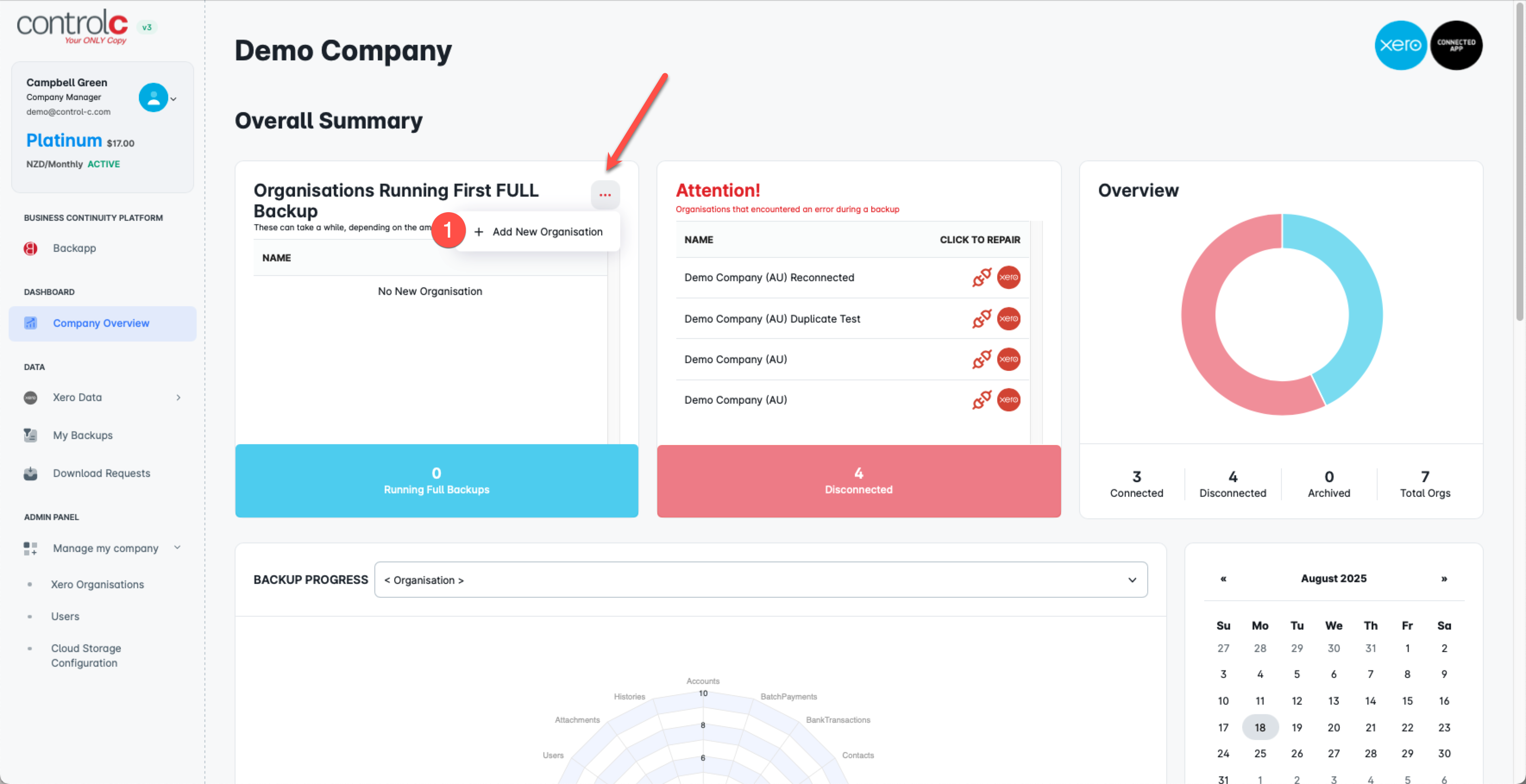
1. Click on the 3 dots to get to the 'Add New Organisation' option...
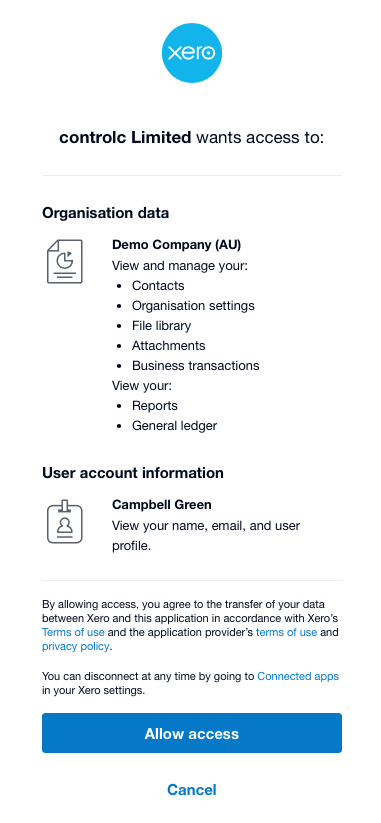
2. You will then be prompted to select the organisation to add through Xero.
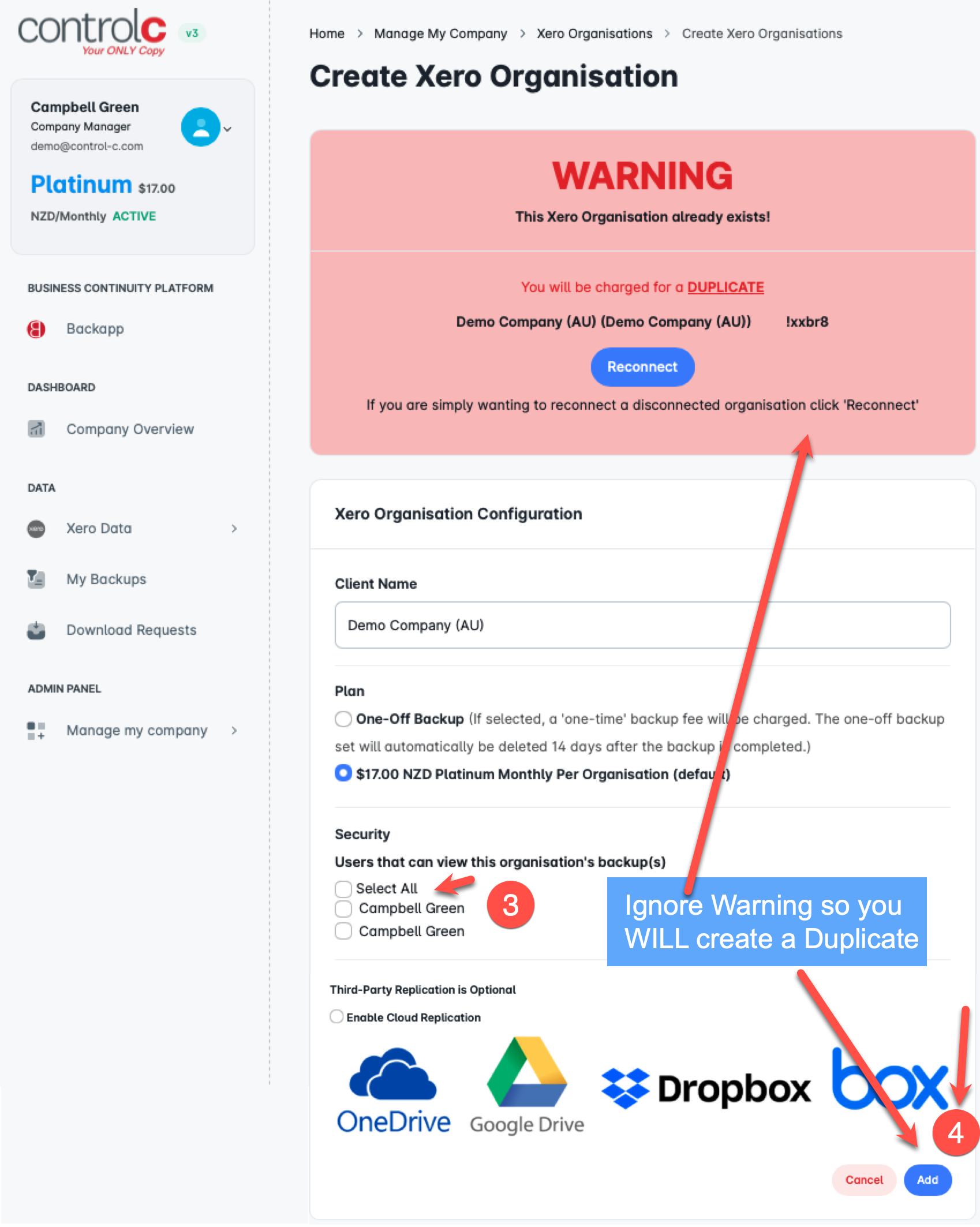
3. You will then be asked if you wish to simply re-connect - DO NOT reconnect. Complete the details such as Name, Plan and Cloud integration (optional), then click Add. You should now see two organisations with the same or similar names (if you have renamed the original). NOTE: you should 'ARCHIVE' the original so you no longer receive disconnected warnings in your dashboard and daily status email. You will not be charged for the duplicates.